Article Documentation
Note: This documentation assumes that you have a Ghost blog setup and running on a server. If you don't have a Ghost blog setup yet, we highly recommend using Ghost(Pro). You can learn more about installing Ghost here.
Introduction
Thank you for purchasing Article! Please take the time to review the documentation below and you'll have your blog set up in no time!
Installation
To install Feature, head to yourdomain.com/ghost/#/settings/design/change-theme. Click the 'Upload theme' button and upload the boulevard.zip file that came with your purchase. Click 'Activate' and the theme is ready to go!
Navigation
Primary Navigation
The primary navigation is used in the header. To edit these menus go to yourdomain.com/ghost/#/settings/navigation.
Dropdown Menus:
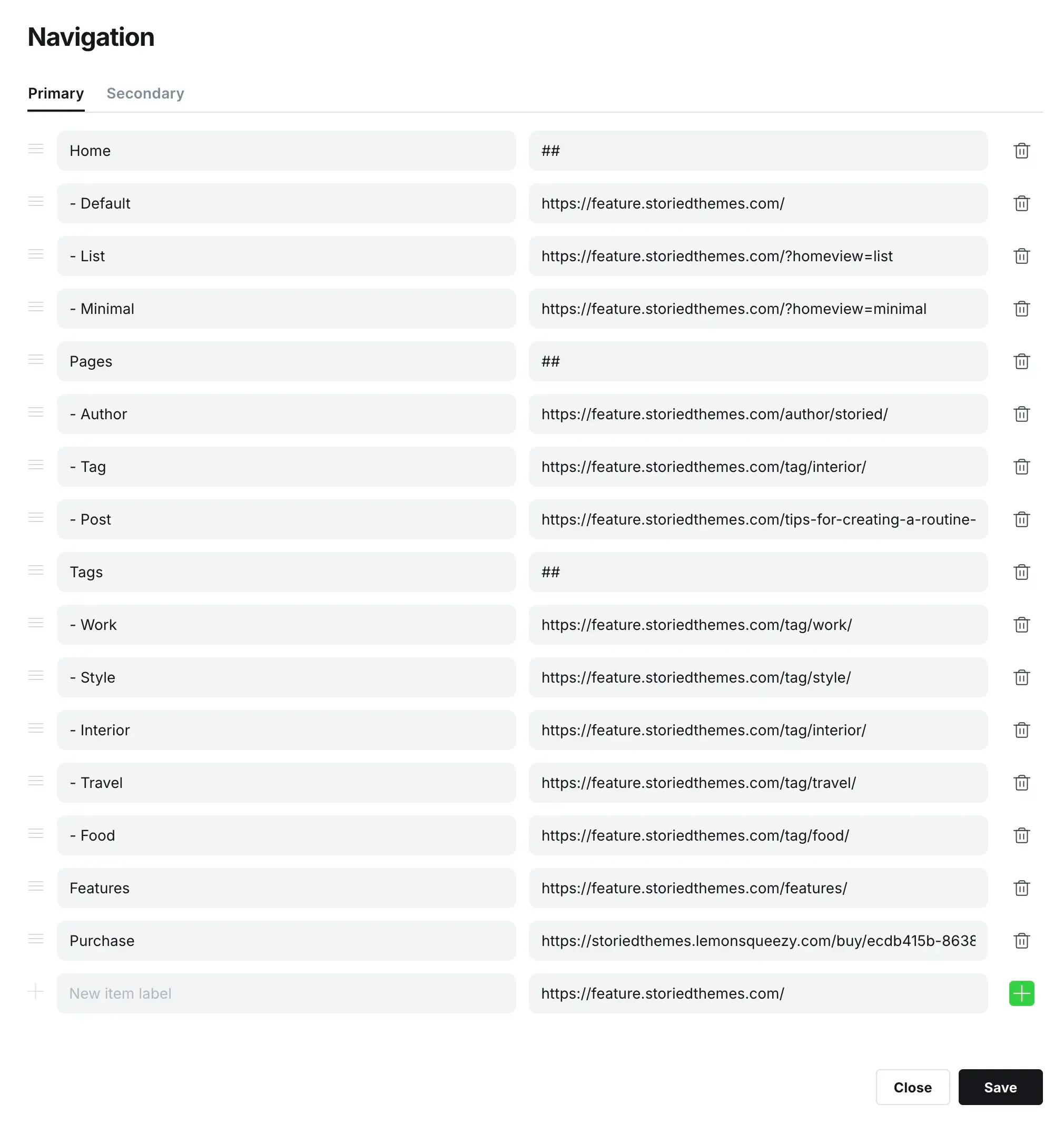
By default, the primary navigation appears inline. To create dropdown menus, add a new navigation item where you'd like the dropdown to begin and type ## in the URL field. This tells the theme when to start a dropdown. Then to add submenu items to the dropdown, prefix the items below it with -. If you do not prefix an item below, it will end the dropdown.
This is an example of a dropdown menu setup:
Secondary Navigation
The secondary navigation is used in the footer.
Footer Columns:
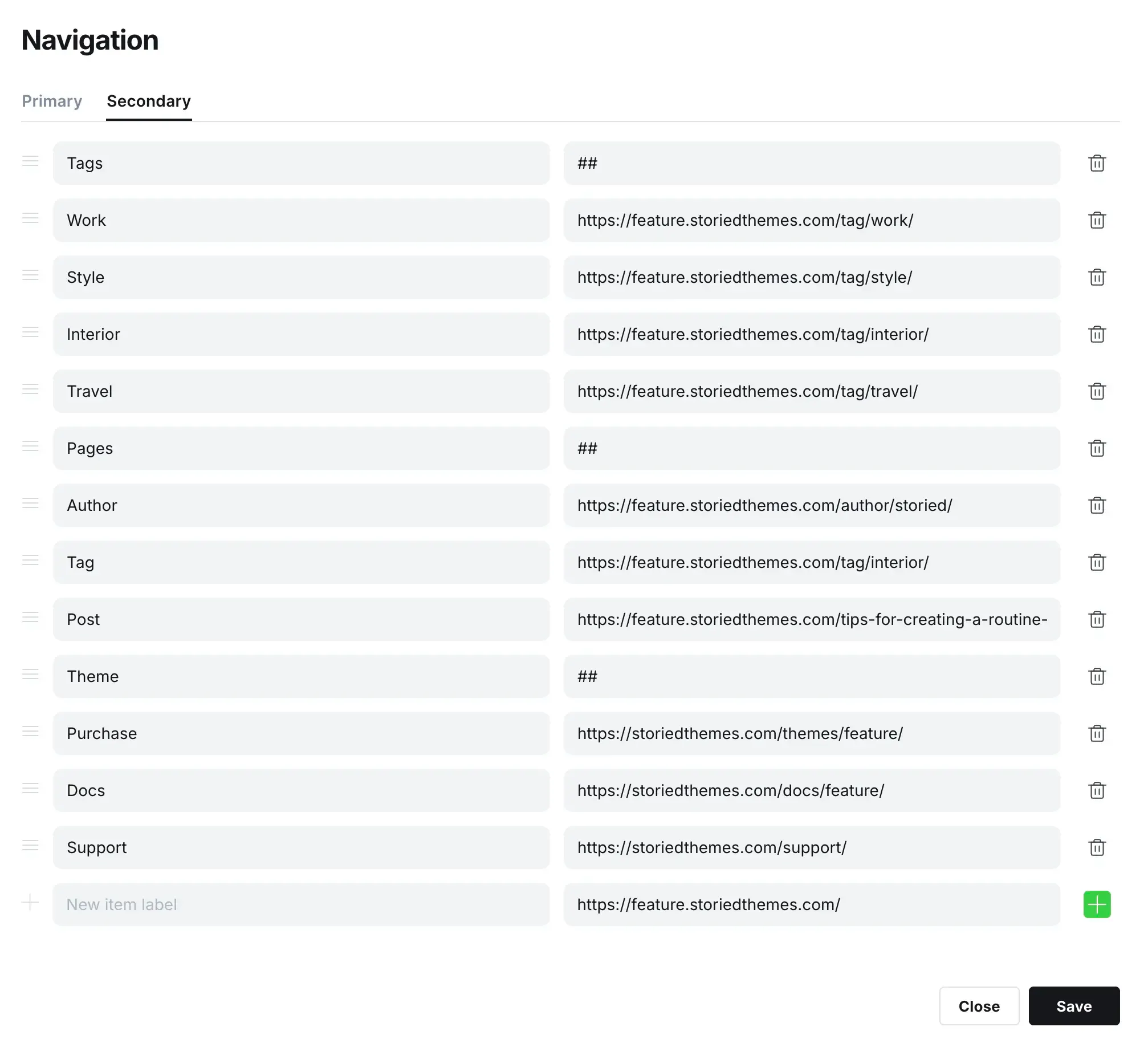
By default, the secondary navigation appears inline. To create columns, add a new navigation item where you'd like the column to begin and type ## in the URL field. This tells the theme when to start a column. Note: You DO NOT need to add prefixes to the columns sub items like we did for dropdowns in the primary navigation.
This is an example of a footer menu setup:
Featured Posts
Featured posts are displayed in a slider on the homepage. You can choose to display them as a slider, cards or hide them entirely. Make sure you have at least 2 posts set as featured to populate the slider and at least 5 posts to populate the cards properly.
Table of Contents
We created a custom post template that displays a table of contents on post pages. The table of contents is automatically generated from the H2 headings used within the post. To display it, select the Table of Contents template while editing your post in the right-side post settings panel.
Theme Settings
To update the design settings, head to yourdomain.com/ghost/#/settings/design.
Brand Settings
- Site description: Used in your site meta tag for search engines.
- Accent color: Used to style buttons and links throughout the theme.
- Publication icon: Used as the browser tab icon.
- Publication logo: Used in the header and footer.
- Publication cover: This setting is not used to maintain the design integrity.
Site-wide Settings
- Desktop logo height: Controls the displayed height of your logo on desktop.
- Mobile logo height: Controls the displayed height of your logo on mobile-sized screens.
- Dark mode: Enables or disables the dark mode switcher on your site (default: enabled).
- Dark mode logo: Upload a light-colored logo to use when dark mode is active.
- Card style: Choose between List or Grid layout for your post cards (default: List).
- Card author: Controls the display of the author in post cards (options: Name, Image + Name, None; default: Name).
- Card date: Displays the post date in post cards (default: enabled).
- Card excerpt: Displays the excerpt in post cards (default: enabled).
- Sidebar featured posts title: The title displayed above the featured posts in the sidebar
- Sidebar featured posts tag: Enter the slug of the tag to pull posts from into the sidebar. 💡 Pro Tip: Use internal tags
- Sidebar: Toggles the sidebar layout visibility across the site (default: enabled).
- Author slug for socials: Enter the author slug to display social links in the footer. Example: john-doe
- Footer copyright text: Sets custom copyright text displayed in the footer.
Homepage Settings
- Featured posts: Choose between Slider, Cards or None for featured posts on the homepage (default: Slider).
Post Settings
- Post author: Controls the display of the author on post pages (options: Name, Image + Name, None; default: Name).
- Post date: Displays the date on post pages (default: enabled).
- Post related: Displays related posts on post pages (default: enabled).
Recommendations
- We recommend using an SVG for your publication logo for crisp display on all devices.
- Make sure you always have the correct amount of featured posts set to properly display the cards or slider.
- Configure the posts header tag filters to showcase your most important content categories.
Support
For support inquiries please visit https://storiedthemes.com/support.